Was? oder wer ist Google Assistant? Es scheint mir, dass es nicht nötig ist zu erklären, weil sich jeder mindestens einmal in seinem Leben mit ihm befasst hat. Jeder, der ein Smartphone oder ein iPhone besitzt, hat diese nützliche Funktion verwendet und weiß, wie hilfreich sie in vielen Situationen ist. Und was tun, wenn es bei uns nicht funktioniert und Google Assistant sich weigert, uns zu gehorchen? Glücklicherweise gibt es eine einfache Möglichkeit, damit umzugehen.

Google Assistant ist zweifellos eine der hilfreichen Anwendungen, die wir auf unserem Handy haben können. Dank der umfangreichen Funktionalität können wir praktisch alles damit machen, ohne den Ort zu verlassen. Google Assistant ist unsere rechte Hand, die einfache und noch kompliziertere Alltagsaktivitäten für uns erledigt. Natürlich ist die Sprachsteuerungsoption eine Erleichterung, dank der wir nicht einmal die Tastatur unseres Telefons verwenden müssen. Wenn Sie der Technologie folgen und auch moderne Smart Home- Geräte in Ihrer Wohnung verwenden, eignet sich Google Assistant auch perfekt als Fernbedienung, mit der Sie beispielsweise intelligente Glühbirnen oder Geschirrspüler steuern können. Sie können die Vorteile dieser Funktion endlos auflisten. Was ist, wenn Google Assistant nicht möchte, dass wir ordnungsgemäß funktionieren?
Glücklicherweise sind die Probleme im Zusammenhang mit Google Assistant nicht sehr schwerwiegend, sodass sie in wenigen Minuten behoben werden können. Befolgen Sie einfach die unten aufgeführten Methoden und alles sollte reibungslos verlaufen.
Starten Sie Ihr Telefon neu
Beginnen wir mit einem einfachen: Starten Sie Ihr Telefon neu. Es ist schnell und einfach herzustellen und auf jeden Fall einen Besuch wert, wie aus der Beseitigung einer Reihe technischer Probleme bekannt ist. Ich bin sicher, dass Sie alle wissen, wie Sie Ihr Android- Gerät zurücksetzen können, aber ich werde diesen Vorgang für alle Fälle durchführen.
Alles, was Sie tun müssen, ist, den Netzschalter am Gerät ein oder zwei Sekunden lang gedrückt zu halten. Dann werden mehrere Optionen angezeigt. Wählen Sie die Option Neustart / Neustart, und Ihr Telefon erledigt den Rest. Versuchen Sie beim Drehen des Mobilteils, den Assistenten Google auszuführen, um festzustellen, ob das Problem weiterhin besteht. Wenn ja, fahren Sie mit dem zweiten Schritt fort.

Stellen Sie sicher, dass der Assistent aktiviert ist und von Ihrem Gerät unterstützt wird
Überprüfen Sie zunächst, ob Ihr Telefon den Google-Assistenten unterstützt - nicht jedes Modell. Geräte, die dies unterstützen, benötigen:
Android 5.0+ mit mindestens 1 GB Speicher
Android 6.0+ mit mindestens 1,5 GB Speicher
Google 6.13 oder höher
Google Play-Dienste
Bildschirmauflösung von mindestens 720p
Zusätzlich muss die Gerätesprache auf eine der folgenden Einstellungen eingestellt sein: Chinesisch (traditionell), Dänisch, Niederländisch, Englisch, Französisch, Deutsch, Hindi, Indonesisch, Italienisch, Japanisch, Koreanisch, Norwegisch, Polnisch, Portugiesisch, Russisch, Spanisch, Schwedisch , Thailändisch, Türkisch oder Vietnamesisch.
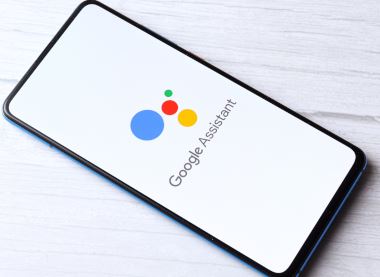
Denken Sie daran, den Google-Assistenten auf Ihrem Android-Gerät zu aktivieren
Wenn alles korrekt ist, der Google-Assistent jedoch immer noch nicht auf Ihrem Telefon funktioniert, müssen Sie als Nächstes sicherstellen, dass der Dienst aktiviert ist. Öffnen Sie die Google- App auf Ihrem Handy, wählen Sie unten auf dem Bildschirm "Mehr" und klicken Sie auf "Einstellungen" und dann auf "Google-Assistent". Der nächste Schritt besteht darin, nach unten zu Allgemein zu scrollen und darauf zu tippen. Schalten Sie dann den Schalter neben "Google Assistant" ein , um den Vorgang abzuschließen. Rufen Sie dann den Assistenten auf, indem Sie "Ok Google" oder "Hey Google" sagen. Wenn auf dem Bildschirm nichts anderes angezeigt wird, fahren Sie mit Schritt 3 fort.

Trainieren Sie Ihr Sprachmodell neu
Möglicherweise funktioniert Google Assistant nicht, da Ihre Stimme nicht erkannt wird. Es ist einfach zu beheben, da Sie lediglich das Sprachmodell neu trainieren müssen.
So geht's:
- Öffnen Sie die Google App auf Ihrem Handy.
- Wählen Sie unten auf dem Bildschirm Mehr aus und klicken Sie dann auf Einstellungen.
- Der nächste Schritt besteht darin, auf Voice zu tippen und Voice Match auszuwählen.
- Tippen Sie nun auf den Schieberegler neben dem Abschnitt Hey Google.
- Klicken Sie auf Weiter und dann auf Zustimmen, wenn der Abschnitt Ich stimme der Sprachübereinstimmung zu.
- Folgen Sie dann den Anweisungen auf dem Bildschirm, um das Sprachmodell neu zu lernen. Es ist sehr einfach - sagen Sie einfach ein paar Mal "Ok Google" und "Hey Google".
Wenn Sie fertig sind, sagen Sie das Schlüsselwort erneut, um festzustellen, ob das Problem behoben wurde und der Google-Assistent funktioniert. Wenn nicht, gibt es noch ein paar andere Dinge, die Sie ausprobieren können, und wir werden sie uns genauer ansehen.

Andere mögliche Lösungen
Wenn keine der bisherigen Korrekturen Ihr Google Assistant- Problem behoben hat, versuchen Sie Folgendes:
- Überprüfen Sie das Mikrofon: Stellen Sie sicher, dass das Mikrofon funktioniert und Sie es nicht mit der Hand bedecken, wenn Sie versuchen, den Assistenten zu rufen. Wenn Ihr Assistent Sie nicht hören kann, reagiert er nicht.
- Überprüfen Sie Ihre Internetverbindung: Sie müssen online sein , um den Assistenten verwenden zu können. Stellen Sie sicher, dass Sie mit einem Wi-Fi oder Mobilfunknetz verbunden sind und die Verbindung stabil ist.
- Andere Sprachassistenten deaktivieren: Wenn Sie ein Samsung-Gerät haben, deaktivieren Sie Bixby , um festzustellen, ob das Problem dadurch behoben wird. Wenn Sie Alexa, Cortana oder einen anderen Sprachassistenten auf Ihr Telefon heruntergeladen haben, schalten Sie es aus oder entfernen Sie es.
- App aktualisieren: Stellen Sie sicher, dass die Google App auf die neueste Version aktualisiert ist. Stellen Sie außerdem sicher, dass Sie Google Apps alle Berechtigungen erteilen, indem Sie zu Einstellungen> Apps> Google App> Berechtigungen gehen (Pfad kann je nach Modell variieren).
Eine dieser Korrekturen sollte das Problem beheben, auf das Sie bei der Verwendung des Google-Assistenten stoßen. Wenn dies nicht der Fall ist, liegt das Problem wahrscheinlich bei Google und nicht bei Ihnen. Dies kann von Zeit zu Zeit vorkommen, insbesondere wenn das Software-Update ungültig ist. Google behebt diese Probleme normalerweise innerhalb von ein oder zwei Tagen. Suchen Sie daher nach einem neuen Google App- Update.
Erfahren Sie, wie Sie die Google Assistant-Stimme auf Ihrem Telefon aktivieren
Folge uns




What Happens to Your Business Number When a Work Phone Is Lost, Stolen or Replaced?
What happens to your business number depends on where it lives. If the number is tied to the SIM in the lost phone, it stops working for you until the carrier issues a replacement SIM or eSIM, and calls from customers go nowhere in the meantime.
If the number lives in a cloud phone account instead, losing the phone doesn't take the number with it. Calls can ring the rest of the team straight away, and the employee signs into the calling app on a new phone to pick up where they left off, with their call history and voicemails still in the account.
Cricfy APK Download Latest Version For Android
Cricfy is a sports streaming application designed for users interested in watching live sports and following different sporting events. Its main focus is to provide convenient access to sports-related content through a mobile-friendly platform.
Cricket is an important part of its appeal, particularly for viewers who enjoy international matches, domestic competitions, and major cricket tournaments. Depending on the available content and supported sources, users may also find football and other sports-related options.
The application is particularly interesting for people who prefer watching sports on their Android devices rather than sitting in front of a television.

Uniwin-Global Rockchip Embedded Motherboards: Sourcing from China for MOQ, QC, Export and Technical Support
Sourcing Rockchip motherboards from China is a procurement question, not a price search. The seven things that actually decide whether a supplier works: pricing that scales with order size, a quality floor you can verify, export terms you can clear, a sample path that starts below the MOQ, technical support that answers, and engineering that catches integration issues before they cost you a quarter.
Uniwin-Global is the running example. The company has built Rockchip boards since 2016 [3], the current flagship is the RK3588 M588 with a 6 TOPS NPU [1], and the site lists 20+ countries served and 200+ projects delivered [4]. The published quality baseline is a sub-1% defect rate with a 1-year motherboard warranty, and the service baseline is a 2-hour response and 48-hour resolution [5, 6].
Two other supplier lanes exist: multi-platform makers that quote Rockchip alongside Allwinner and others, and dev-kit sellers that sell a reference board at a low price. Each lane fits a different stage of the project. The wrong lane is more expensive than the right one at the same unit price. Pick the lane first. The price follows.
One caution. A product page is a claim. The MOQ, the trade term, the QC gate and the SLA all need to be in writing before the PO is signed.

How to Build a HIFU Product Line That Distributors Can Manage
Every HIFU variant a distributor adds brings its own cartridge bin, manual, training file, and spare-parts list. Product lines rarely get out of hand through planning. They grow one request at a time: a different housing color, a narrower cartridge, a regional plug for one important clinic. Eventually pricing can't be explained in one sentence, and cartridge orders split across codes that look almost identical.
This guide is for distributors, importers, and private-label buyers who stock HIFU systems for clinics and med spas and carry the after-sales work themselves. It covers how to group clinic demand, which differences deserve their own model code, how to price tiers against landed cost, and how to plan cartridge replenishment and service records around machines already in the field. The aim is a line chosen by what you can stock, train, and service, rather than by what clinics happen to ask for.
Check SIM Owner Details in Pakistan Official Guide
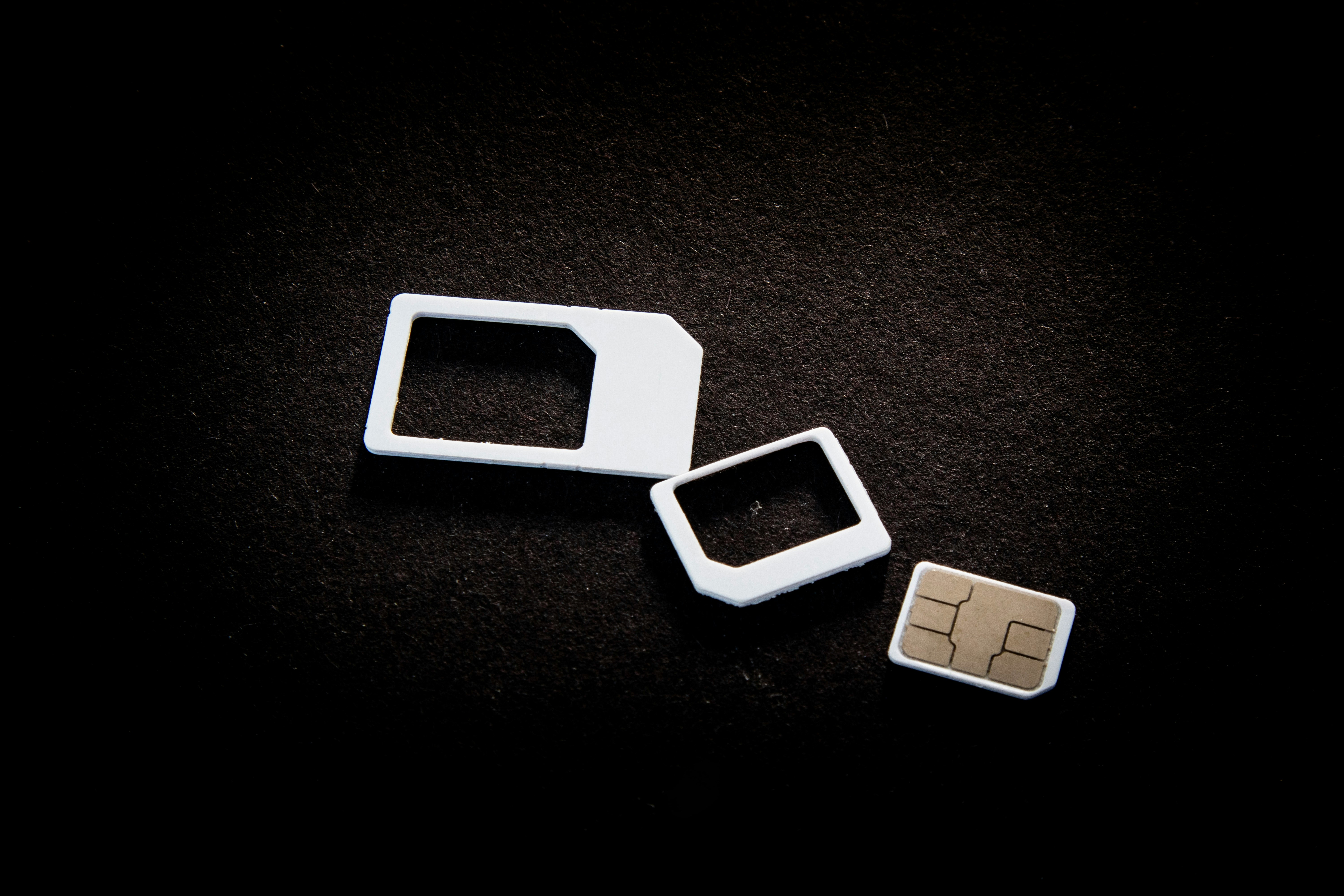
Phones have become an integral part of human life. From making calls to mobile banking and shopping and social media every function requires a sim card to get connected in Pakistan. A responsible person must know how many sim cards are registered under his CNIC and if they are verified or not. The Check SIM Owner Details Pakistan system enables you to ensure that your SIM cards are legitimate and registered under your details.
While searching for Fresh SIM Database, it is critical to understand that SIM card details are private and confidential, and only the owner can check them. This article will explain what SIM owner details are, why it is essential to verify them, how to check them officially, and why it is safer to avoid unverified sources for checking.
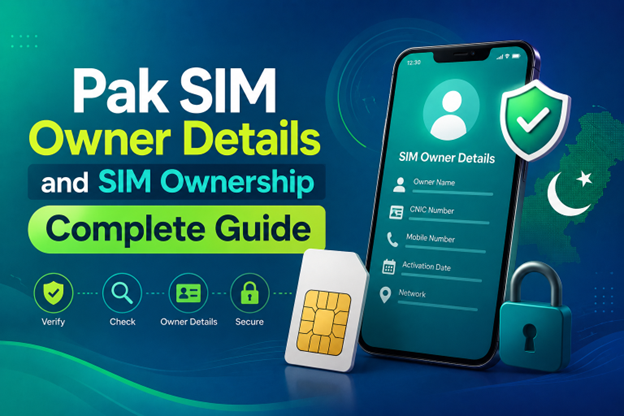
Pak SIM Owner Details and SIM Ownership Complete Guide
It becomes difficult to understand and navigate SIM card registration and ownership in Pakistan considering all the regulations and the amount of information that is available online. You may have gotten a new SIM card, or you might be curious about how many SIM cards are associated with your CNIC number; in any case, having an understanding of the process is critical.
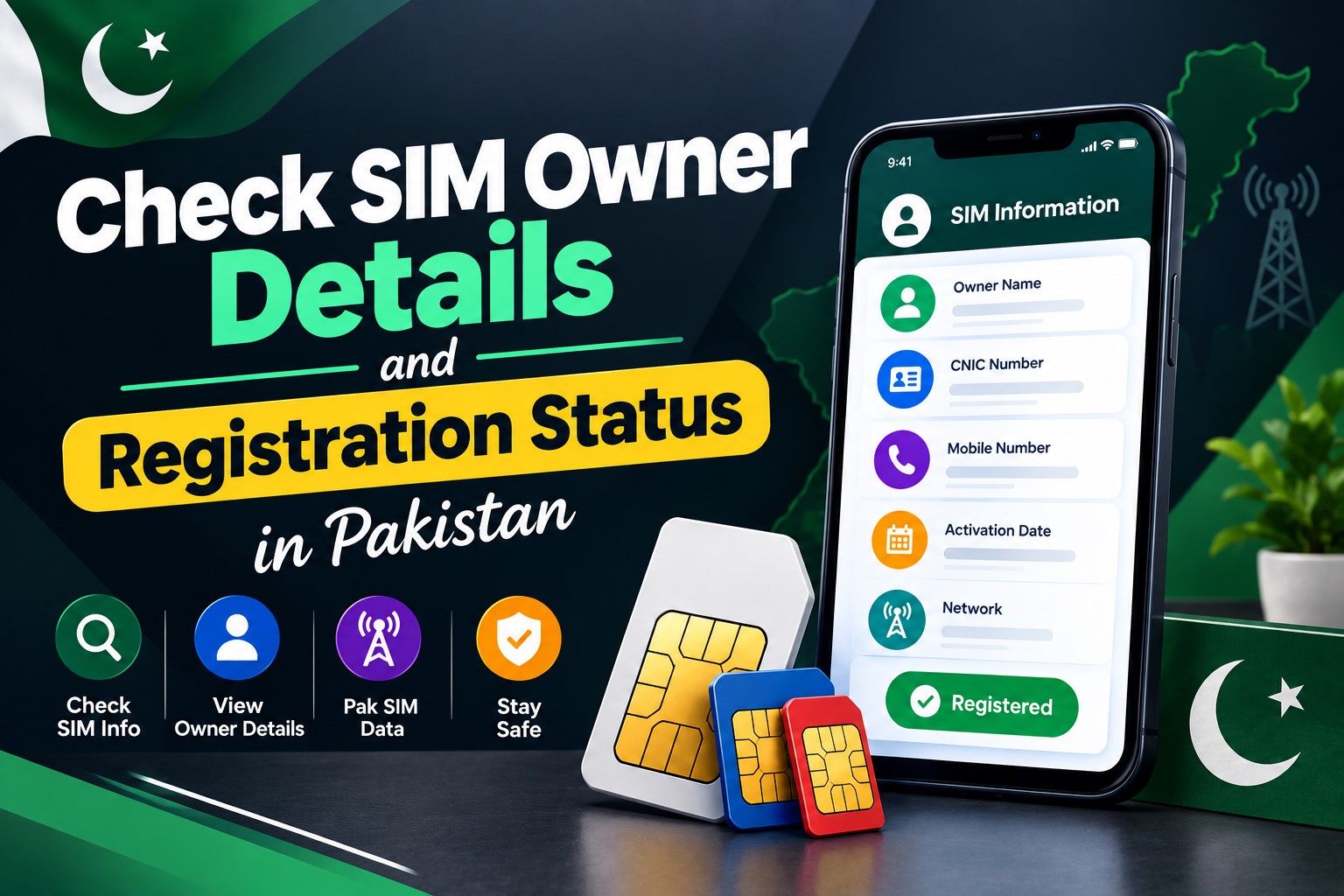
How to Check SIM Owner Details and Registration Status in Pakistan
Checking your SIM card details is very important in Pakistan today. Every mobile SIM card is directly linked to your CNIC number through thumb verification. Keeping an eye on your Pak Sim Owner Details protects your identity, stops scams, and makes sure nobody uses your name for wrong activities. Many people search for ways to check their Sim Owner Details 2026 status, see active numbers, and remove unused SIMs. This article explains how you can easily check everything yourself without any trouble.
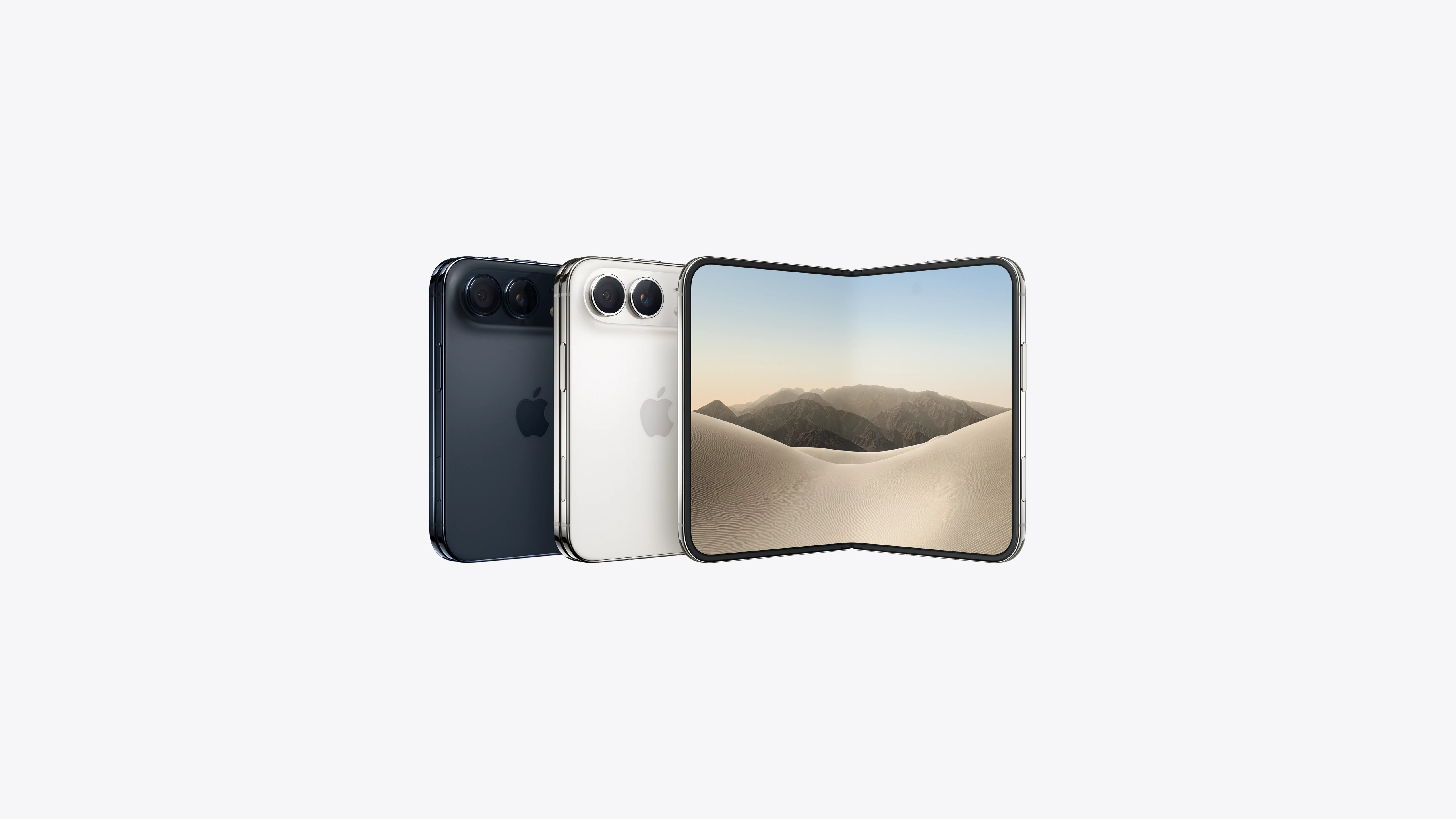
Apple iPhone Duo Review: Foldable iPhone Specs, Price & Features
Apple is entering the foldable smartphone market with the iPhone Duo, a premium foldable iPhone built around two displays, the A20 Pro processor, a titanium construction, dual 48 MP cameras and a redesigned iOS experience focused on multitasking. But the iPhone Duo is interesting for another reason as well. A folding phone is inherently more complex than a conventional smartphone. It has two displays, a precision hinge, multiple operating positions and completely new ways of using cameras and applications.
 IMEI ÜBERPRÜFEN



















I cannot see whole article